Zarcula
Darcula’s sophisticated cousin, custom-built for Zed.
How to install
With Forge Super installed, the button above opens the app on this extension, where you press Install. Nothing is installed until you do.
You can also open the Extensions panel in the app and search for Zarcula. The extension's id is zarcula-theme.
Don't have Forge Super yet? Download it here.
README
From the extension's repository, written by its authors and not by Mentenaz. See the source.
Zarcula for Zed
Zarcula is a dark theme for the Zed editor inspired by JetBrains Darcula – but tuned specifically for Zed’s UI, terminal, and collaborative editing experience.
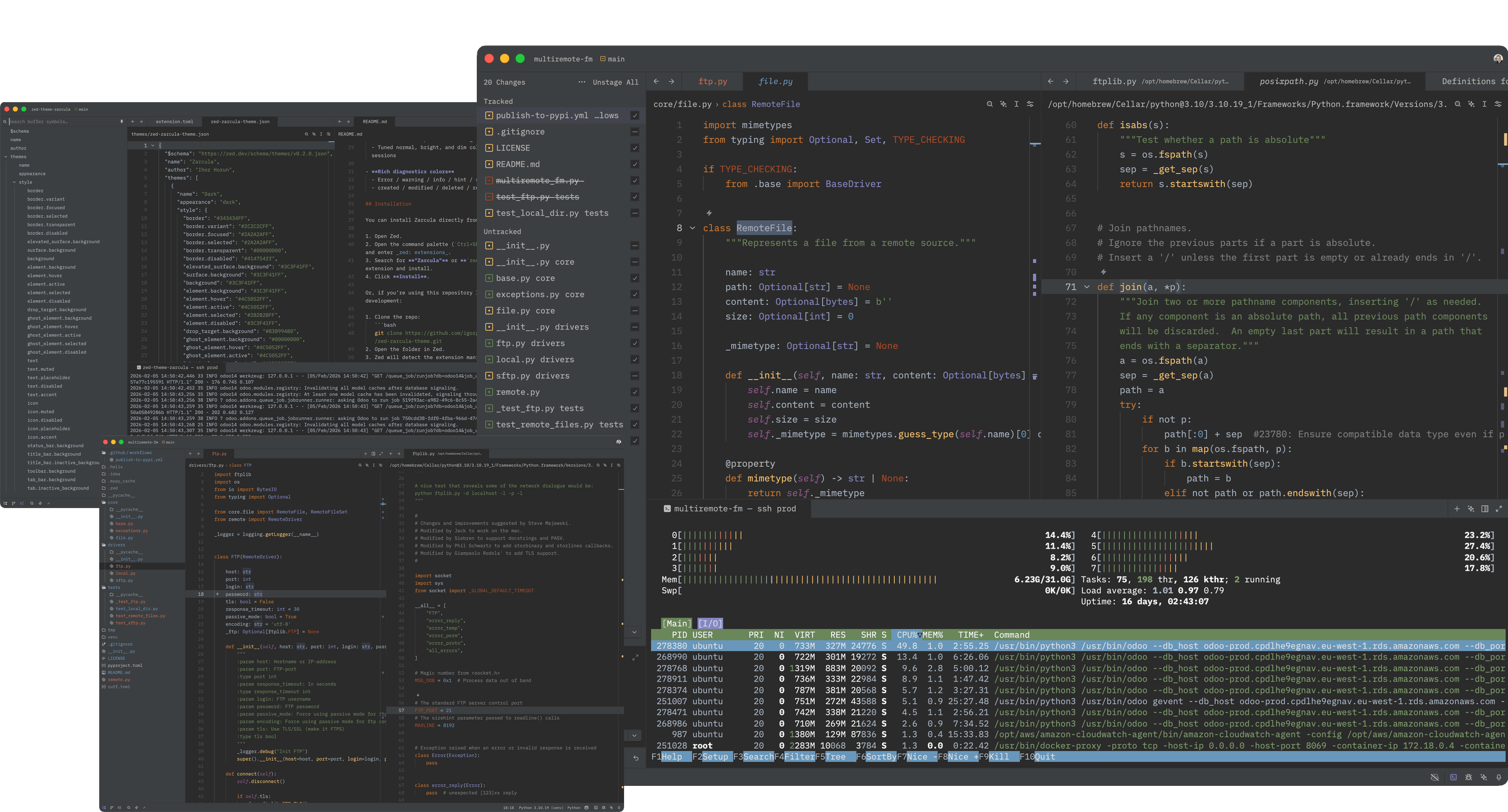
Git Panel & HTOP | Project Panel & Python | Outline Panel & Json & MD
Features
Darcula’s sophisticated cousin, custom-built for Zed.
-
Carefully matched backgrounds and borders for
- Editor and gutter
- Panels and toolbars
- Tabs, status bar, and title bar
-
Readable syntax colors
- Keywords & booleans:
#CC7832(warm orange) - Strings & labels:
#6A8759(muted green) - Numbers & numeric-like values:
#6897BB(blue) - Functions:
#FFC66D(soft yellow) - Types & selectors:
#8888C6(violet) - Comments:
#808080(neutral gray) - Doc comments:
#6A8759(green, to stand out from regular comments)
- Keywords & booleans:
-
Integrated terminal styling
- Dedicated ANSI palette matching the editor colors
- Tuned normal, bright, and dim colors for long shell sessions
-
Rich diagnostics colors
- Error / warning / info / hint / success
- created / modified / deleted / renamed
Installation
You can install Zarcula directly from within Zed:
- Open Zed.
- Open the command palette (
Ctrl+Shift+P/Cmd+Shift+P) and enter zed: extensions. - Search for "Zarcula" or
zed-zarcula-themeextension and install. - Click Install.
Or, if you’re using this repository locally during development:
- Clone the repo:
git clone https://github.com/igorgoroun/zed-zarcula-theme.git - Open the folder in Zed.
- Zed will detect the extension manifest (
extension.toml) and offer to load the theme.
Activation
Once installed:
- Open Settings → Appearance → Theme.
- Choose Zarcula – Dark from the theme list.
You can also use the command palette:
- Press
Ctrl+Shift+P/Cmd+Shift+P. - Run “Change Theme”.
- Select Zarcula (Dark).
Contributing
Feedback and contributions are welcome:
-
Fork the repo.
-
Make your changes to
themes/zed-zarcula-theme.json. -
Open a pull request on GitHub:
https://github.com/igorgoroun/zed-zarcula-theme
License
See the LICENSE file in this repository for details.