Umbra
Monochromatic dark theme with subtle semantic accents
How to install
With Forge Super installed, the button above opens the app on this extension, where you press Install. Nothing is installed until you do.
You can also open the Extensions panel in the app and search for Umbra. The extension's id is umbra-theme.
Don't have Forge Super yet? Download it here.
README
From the extension's repository, written by its authors and not by Mentenaz. See the source.
Umbra
Umbra is a dark theme extension for Zed with two variants:
- Umbra Mono - monochrome syntax with minimal visual noise
- Umbra Color - the same base UI palette with colorized syntax highlighting
Both variants preserve semantic UI accents for diagnostics, git changes, and editor states.
Theme Variants
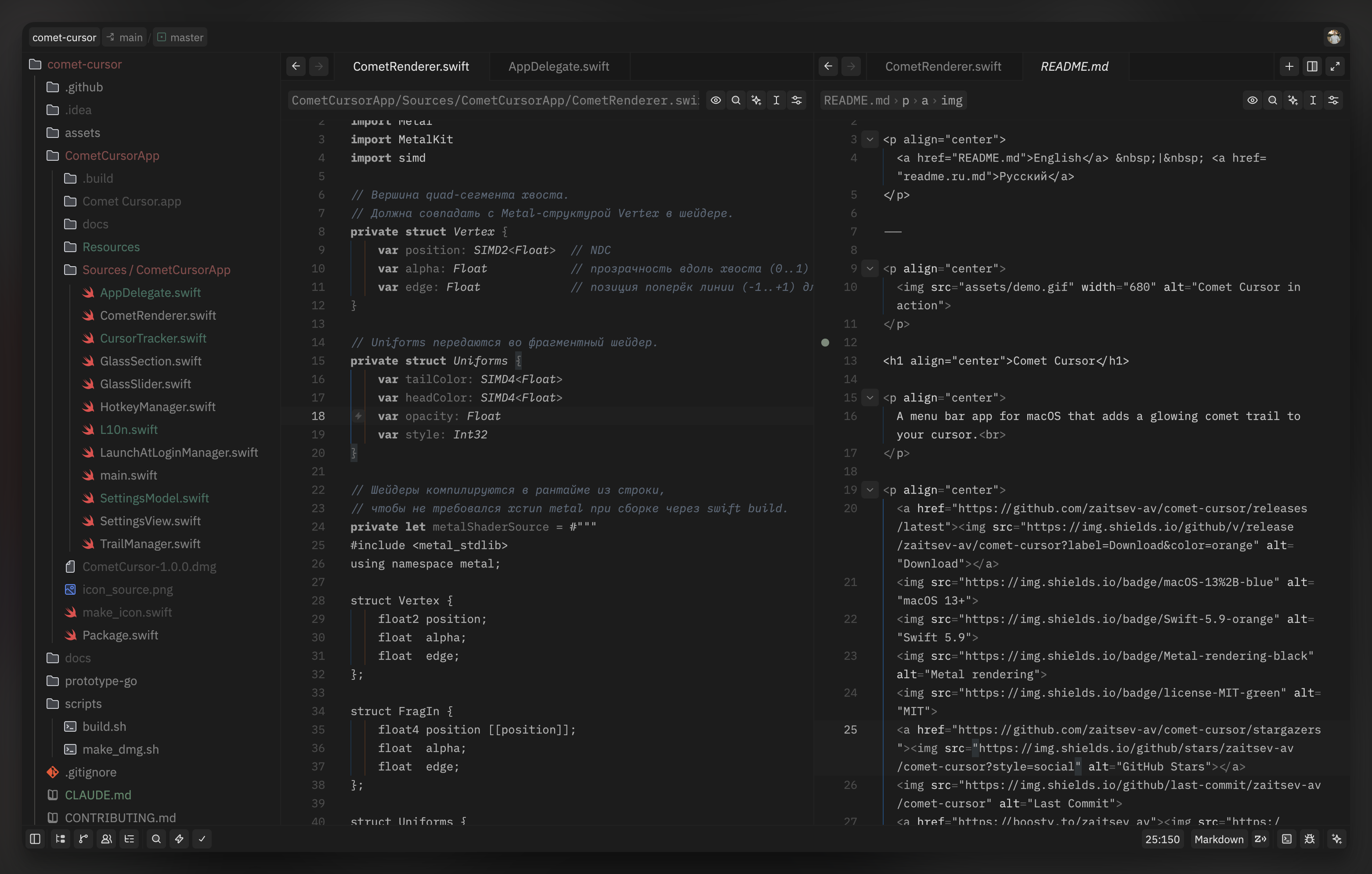
Umbra Mono
Monochrome syntax built around contrast and hierarchy.
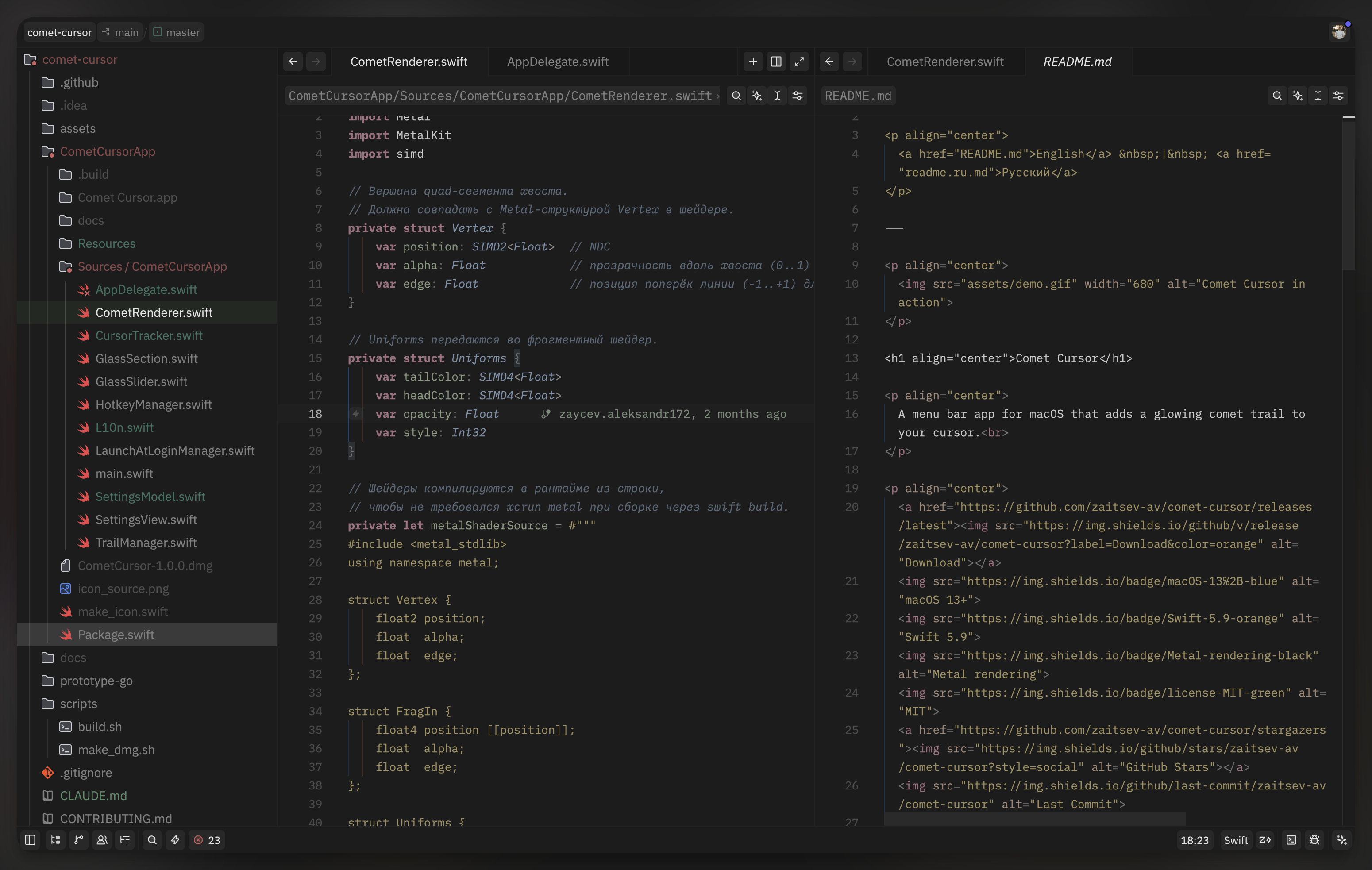
Umbra Color
Colorized syntax for better token recognition while keeping Umbra's dark mood.
Semantic Accents
UI semantic colors are intentionally subtle and consistent across both variants:
- Green - created/added lines, success states
- Red - errors, deleted lines
- Amber - warnings
- Purple - conflicts, predictive/AI states
- Blue-gray - informational and comment-like contexts
Installation
Via Zed Extensions
- Open the command palette.
- Run
zed: extensions. - Search for Umbra and install it.
Manual Installation
- Download
themes/umbra.json. - Place it in
~/.config/zed/themes/. - Choose one of the included themes in
settings.json:
{
  "theme": "Umbra Mono"
}
or
{
  "theme": "Umbra Color"
}
Customization
You can override any theme color in settings.json using experimental.theme_overrides:
{
  "experimental.theme_overrides": {
    "style": {
      "editor.background": "#0d0d0d"
    }
  }
}