Truly Zen
A zed editor theme for total concentration.
How to install
With Forge Super installed, the button above opens the app on this extension, where you press Install. Nothing is installed until you do.
You can also open the Extensions panel in the app and search for Truly Zen. The extension's id is truly-zen-theme.
Don't have Forge Super yet? Download it here.
README
From the extension's repository, written by its authors and not by Mentenaz. See the source.
Truly Zen
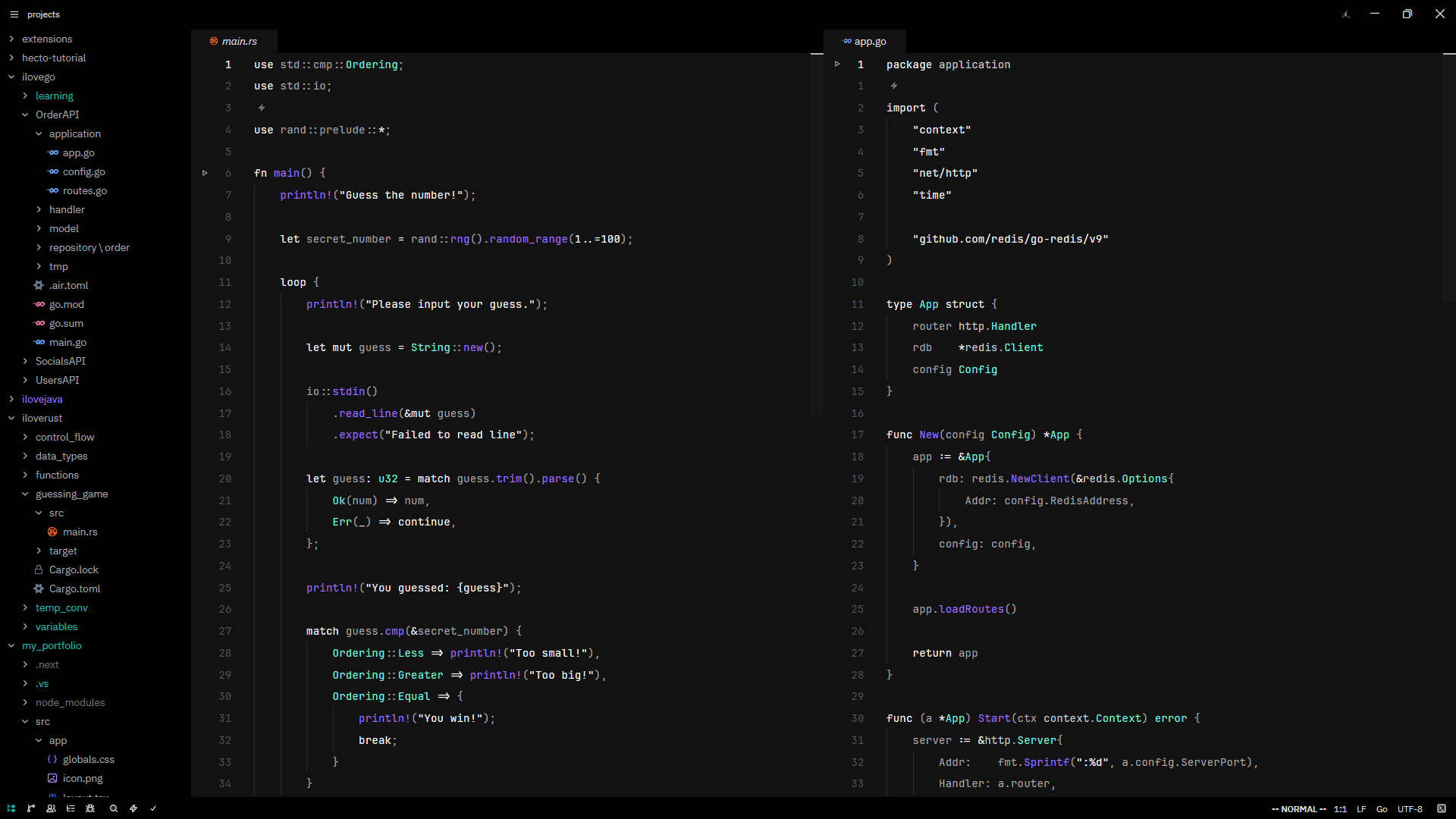
A Zed editor theme for total concentration. Dark, minimal, and just a little bit mysterious.
What's the vibe?
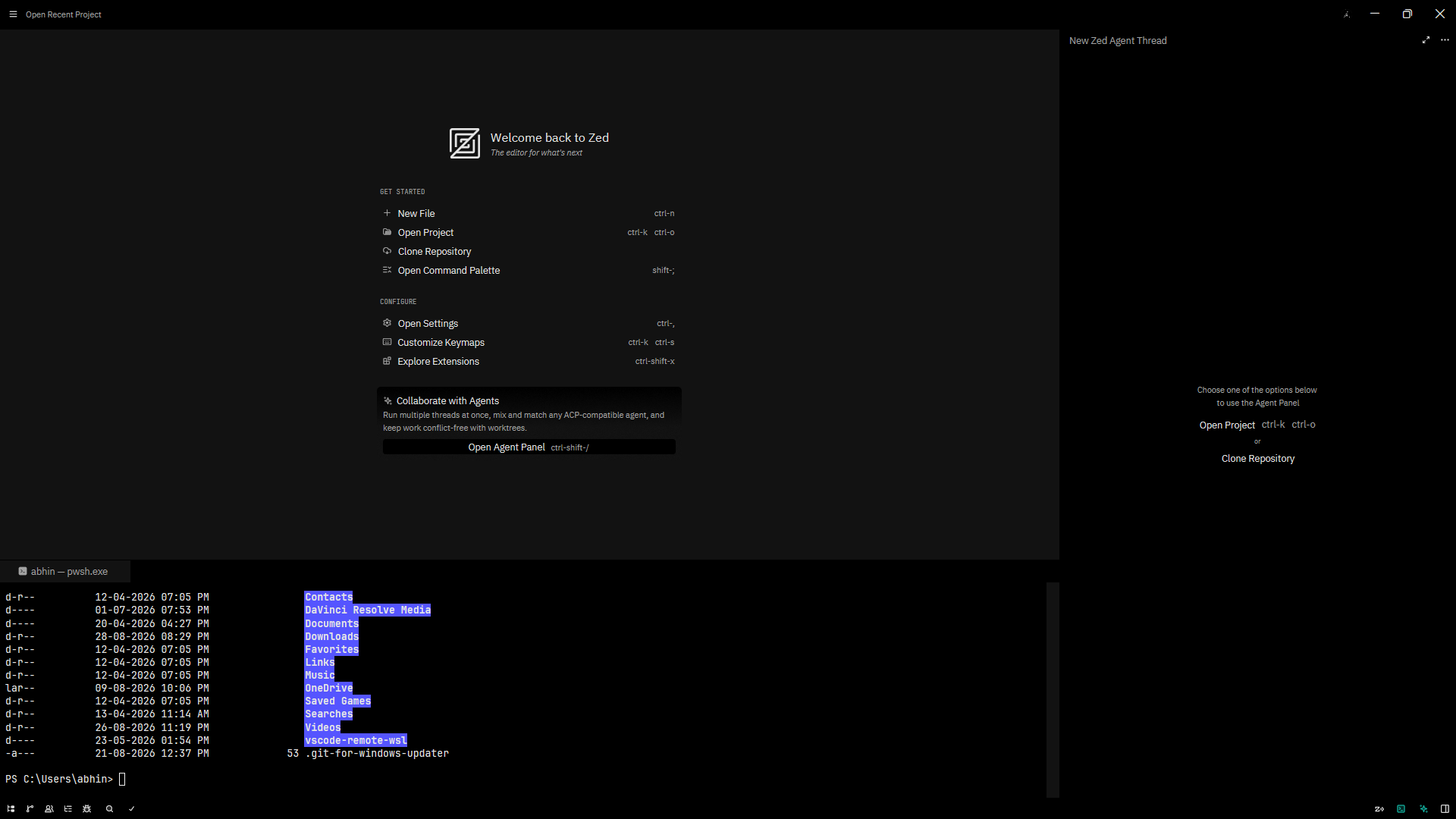
Truly Zen is what happens when you take a pure black canvas and sprinkle in teal accents like digital tea leaves. It's designed to disappear into the background so you can focus on what actually matters: your code.
The aesthetic:
- Pitch black backgrounds (#000000) because why waste pixels?
- Teal highlights (#14B8A6) that pop without screaming
- Soft grey text that doesn't strain your eyes at 3am
- Purple functions (#9D70FF) because life needs a little color
- White keywords for maximum readability
Two flavors included:
- Truly Zen Dark — the classic experience
- Truly Zen Dark Italics — same zen, but with italics on keywords and comments for extra flow state
Installation
From the Extension Store
- Open Zed
- Press
ctrl+shift+x(orcmd+shift+xon macOS) to open Extensions - Search for "Truly Zen"
- Click Install
- Select it from the theme selector with
ctrl+k ctrl+t
As a Dev Extension (for testing)
- Clone this repo:
git clone https://github.com/abhinaaaavvv/truly-zen-theme.git - Open Zed
- Open the command palette with
ctrl+shift+p - Run
zed: Install Dev Extension - Select the cloned directory
- Pick your theme from
ctrl+k ctrl+t
Manual Installation
- Copy
themes/truly-zen.jsonto:- macOS/Linux:
~/.config/zed/themes/truly-zen.json - Windows:
%USERPROFILE%\AppData\Roaming\Zed\themes\truly-zen.json
- macOS/Linux:
- Restart Zed
- Select the theme with
ctrl+k ctrl+t
Settings
If you want to set it as your default theme, add this to your settings.json:
{
  "theme": "Truly Zen Dark"
}
Or for the italics version:
{
  "theme": "Truly Zen Dark Italics"
}
For dark/light mode switching:
{
  "theme": {
    "dark": "Truly Zen Dark",
    "light": "One Light",
    "mode": "system"
  }
}
Color Palette
| Element | Color |
|---|---|
| Background | #000000 |
| Editor | #121212 |
| Text | #e5e5e5 |
| Accent | #14B8A6 (teal) |
| Functions | #9D70FF (purple) |
| Types | #2DD4BF (cyan) |
| Keywords | #F5F5F5 (white, italic) |
| Comments | #525252 (grey, italic) |
| Strings | #F5F5F5 (white) |
| Variables | #a3a3a3 (light grey) |
Terminal Colors
The theme includes a full set of terminal colors that match the aesthetic:
- Bright greens and cyans for that hacker vibe
- Classic reds for errors (obviously)
- Soft yellows for warnings
- The usual ANSI suspects, all tuned to play nice with the dark backgrounds
Contributing
Found a bug? Want to add something? PRs are welcome. Just keep the zen intact.
License
MIT — use it, modify it, make it your own.
Made with focus in mind. Now go ship something. ✨