Lucide Icons
File and folder icons built from Lucide (lucide.dev)
How to install
With Forge Super installed, the button above opens the app on this extension, where you press Install. Nothing is installed until you do.
You can also open the Extensions panel in the app and search for Lucide Icons. The extension's id is lucide-icons.
Don't have Forge Super yet? Download it here.
README
From the extension's repository, written by its authors and not by Mentenaz. See the source.
Lucide Icons for Zed
A file and folder icon theme for Zed built from Lucide: round caps, Lucide's 24×24 grid, and spacing that matches the official set. One variant per Tokyo Night theme:
- Lucide Night – icon colour
#737AA2, Tokyo Night's blue-grey - Lucide Storm – icon colour
#7982A9, Storm's own muted text colour - Lucide Moon – icon colour
#636DA6, Moon's purple-leaning comment colour - Lucide Light – icon colour
#4C505E, the colour Tokyo Night Light uses for Zed's own icons
Slightly smaller and thinner than pure Lucide, to match Zed's own icons.
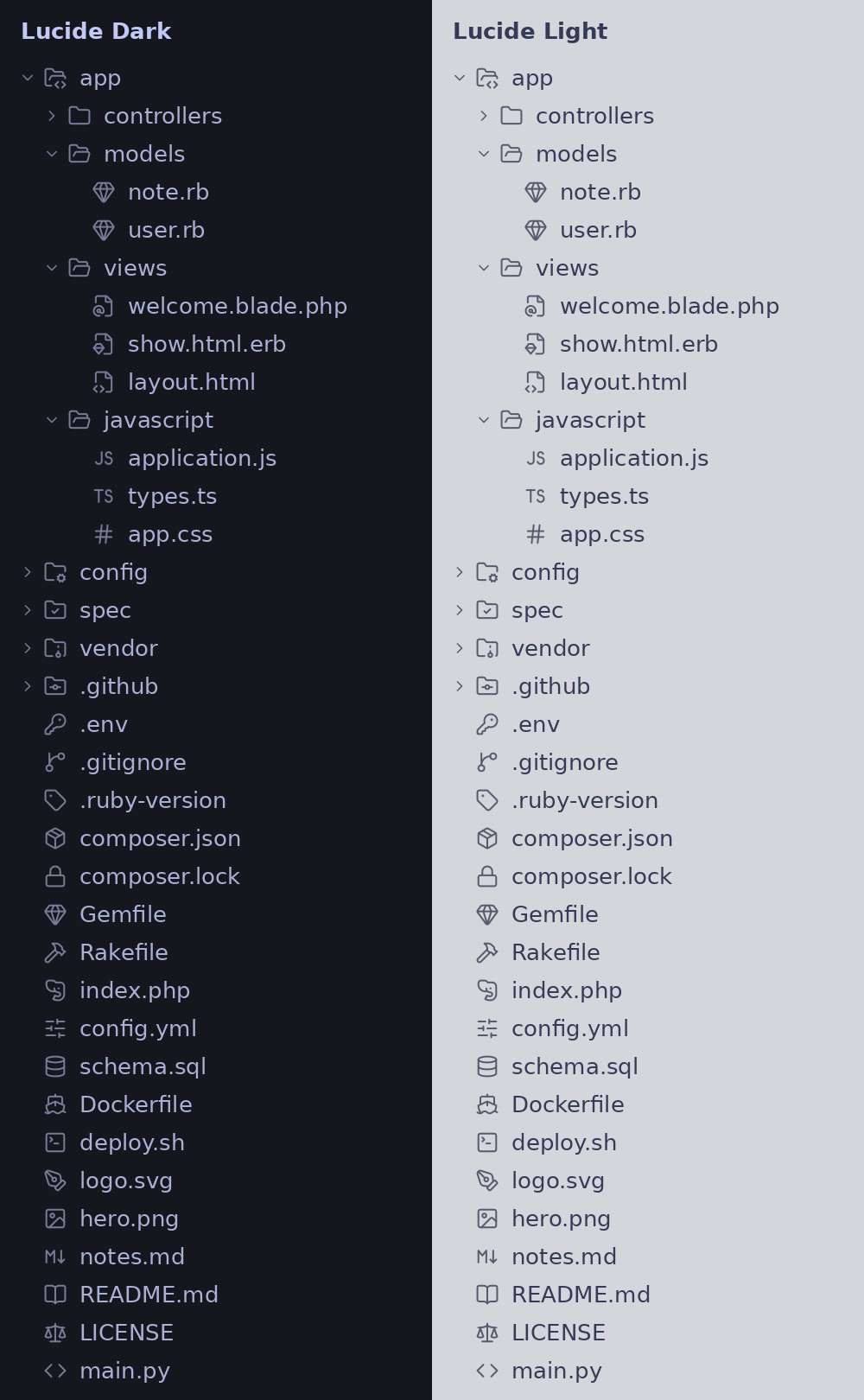
Design rules
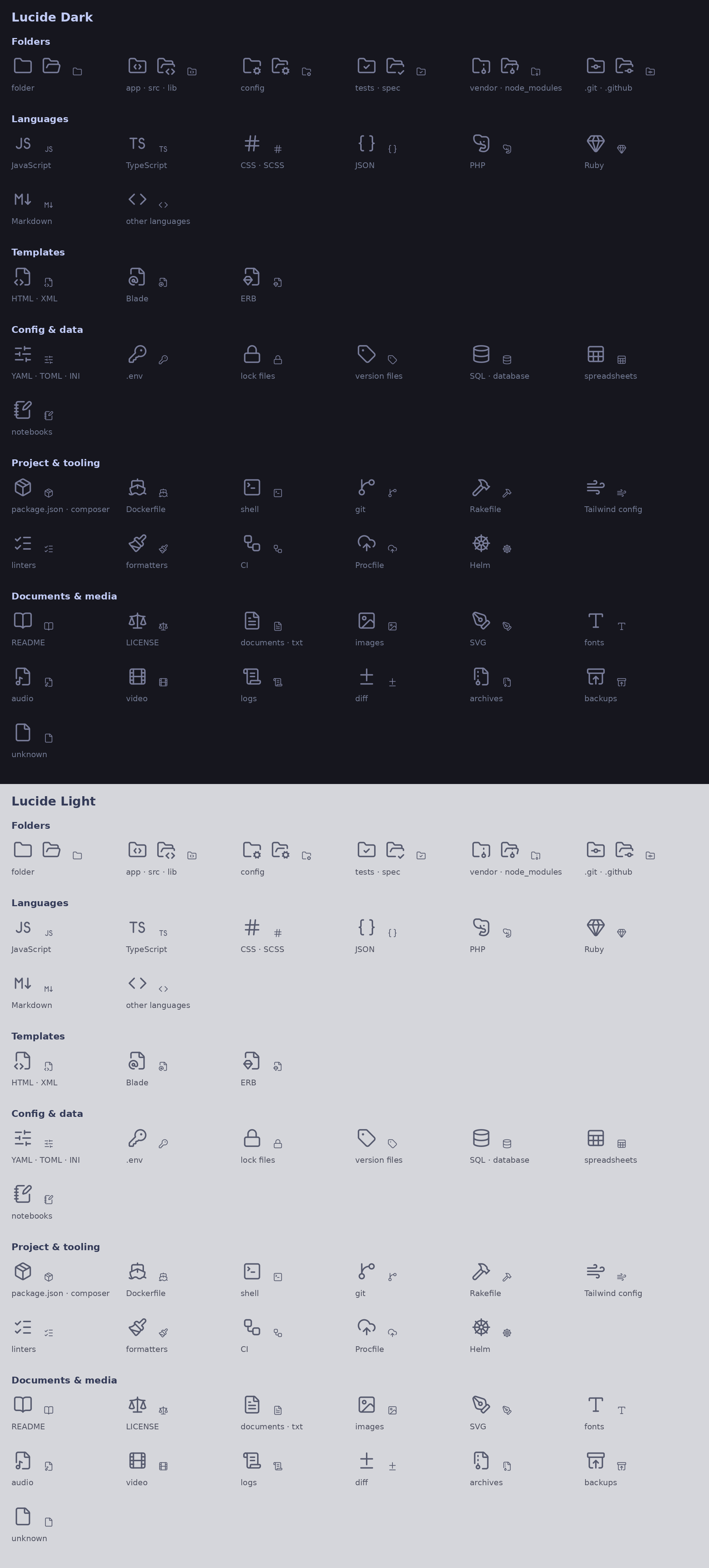
- Bare symbol = a language or the thing itself:
JS,TS,GO,M↓(Markdown),#(CSS),{ }(JSON), elephant (PHP), gem (Ruby), devil horns (Metal shaders – \m/), snowflake (Nix), moon (Lua), λ (Haskell), chef's hat (mise – as in mise en place), image, font… - File with a corner symbol = a file that wraps something else: templates (HTML/XML
<>, Blade@, ERB gem). - Corner symbols use Lucide's standard corner size (~10×10), so they weigh the same.
- Every file type Zed knows has a Lucide icon; languages without their own icon fall back to a generic
<>(code), never to Zed's default icons. - Generic symbols only – no brand logos.
All icons
Install (dev extension)
- Put this folder somewhere permanent – Zed loads a dev extension straight from it.
- Command palette →
zed: install dev extension→ choose this folder (the one containingextension.toml). - Command palette →
icon theme selector: toggle→ pick the variant that matches your theme.
Follow your system appearance in settings.json:
"icon_theme": { "mode": "system", "light": "Lucide Light", "dark": "Lucide Night" }
Change or extend
Everything is generated by build.py from a clone of the Lucide repo:
git clone --depth 1 https://github.com/lucide-icons/lucide.git /tmp/lucide
python3 build.py /tmp/lucide
Then open zed: extensions and click Rebuild on Lucide Icons. If something fails, check zed: open log.
Settings at the top of build.py:
| Setting | What it does |
|---|---|
APPEARANCES | Theme names and the fixed icon colour per variant |
PADDING | Extra room around the 24px grid; higher = smaller and thinner icons (0 = pure Lucide) |
STROKE_WIDTH | Line width; Lucide's default is 2 |
CHOICES | Alternatives for Blade, ERB and Markdown (kept in custom/) |
FILE_ICONS, FILE_SUFFIXES, FILE_STEMS, NAMED_DIRS, ZED_KEYS | Which icon goes with which file or folder |
Custom icons (JS/TS/GO and M↓ lettering, Blade/ERB/HTML files, the framed Markdown mark as an alternative, open variants of named folders) live in custom/.
Why fixed colours?
- Zed renders icon-theme SVGs as images, so they can't inherit the editor theme's colour or react to hover.
build.pybakes in a fixed colour per variant; change it inAPPEARANCESfor other themes.
Changelog
See CHANGELOG.md.
Credits
Icons © Lucide contributors (ISC; portions MIT via Feather) – see LICENSE. elephant-face comes from Lucide Lab.
This is an unofficial community project, not affiliated with or endorsed by Lucide.