Glass
Liquid glass — a transparent, frosted theme (dark + light) for Zed
How to install
With Forge Super installed, the button above opens the app on this extension, where you press Install. Nothing is installed until you do.
You can also open the Extensions panel in the app and search for Glass. The extension's id is glass-theme.
Don't have Forge Super yet? Download it here.
README
From the extension's repository, written by its authors and not by Mentenaz. See the source.
Glass
A liquid-glass theme for Zed — a transparent, frosted look that lets your desktop show through the editor, tree, and terminal as one continuous pane.
Ships two variants:
- Dark Glass — transparent dark glass (primary).
- Light Glass — transparent light glass.
Screenshots
| Dark Glass | Light Glass |
|---|---|
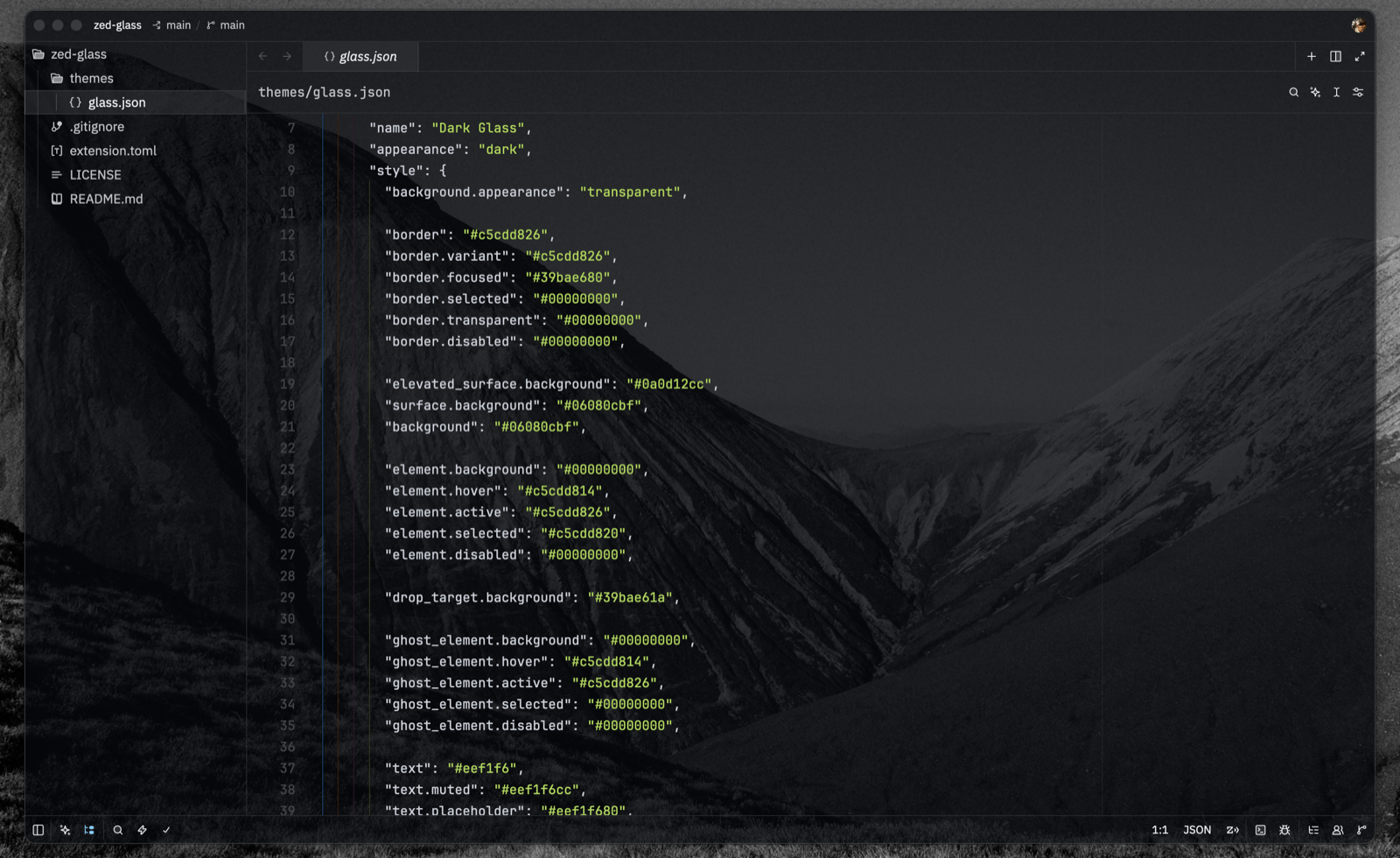 | 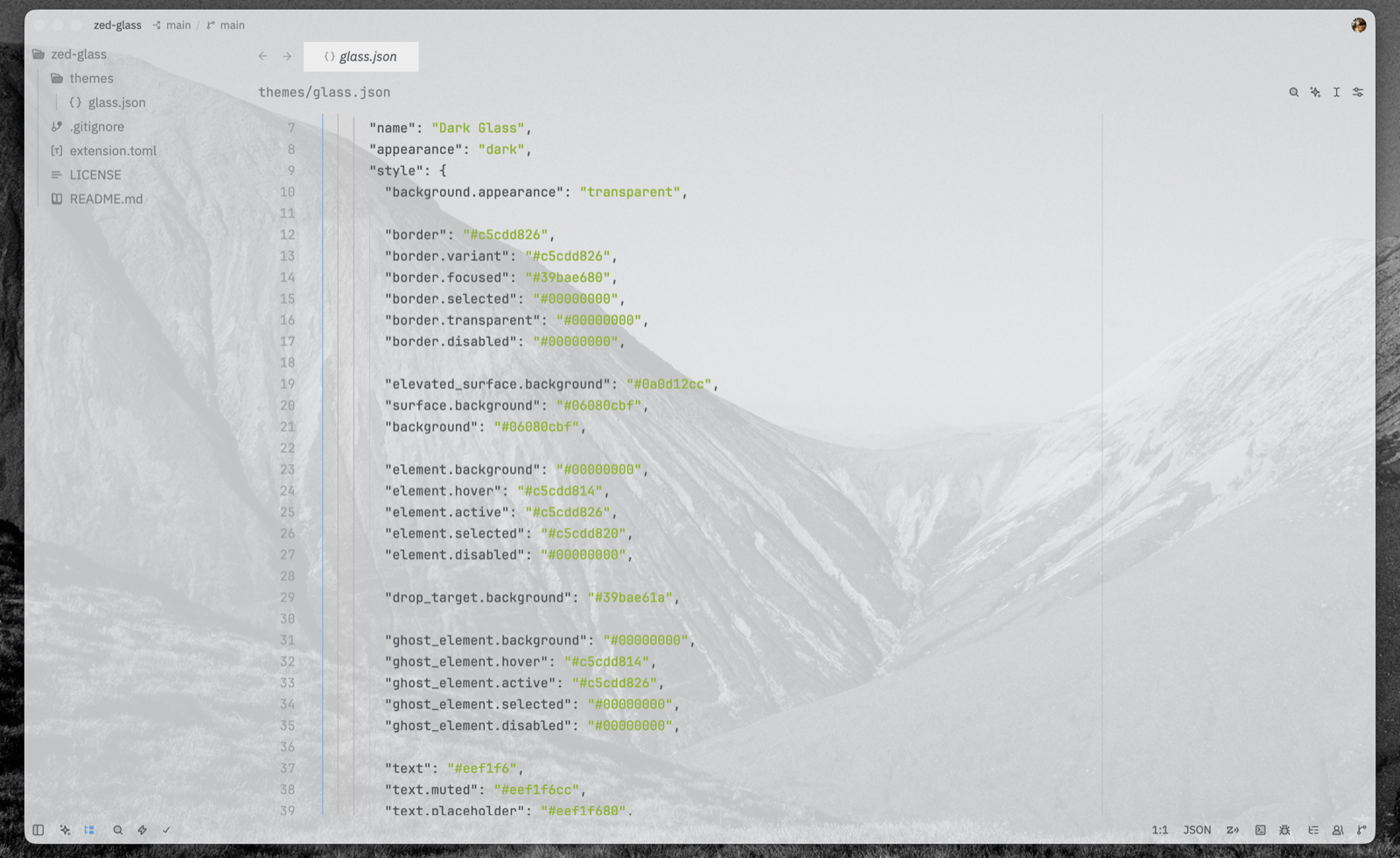 |
Note: transparency requires a transparent window background. This works over your desktop wallpaper; the effect is strongest over an even or lighter area.
How it works
The tint lives in a single window background; the editor, project panel, tabs, breadcrumbs, and terminal are all transparent and read through it. This keeps every surface the exact same tone — no seams, no double-darkened docks — and gives the file tree a real backdrop instead of bare wallpaper.
Transparency looks best over an even or lighter area of your wallpaper; glass over a very dark region will naturally read dark, since there is little for it to reveal.
Installation
From the Zed extension registry
Cmd+Shift+X → search Glass → Install. Then Cmd+K Cmd+T → Dark Glass / Light Glass.
As a dev extension (local)
Cmd+Shift+X → Install Dev Extension → select this repository's root. Zed picks up
themes/glass.json automatically.
Manual (theme file only)
mkdir -p ~/.config/zed/themes
cp themes/glass.json ~/.config/zed/themes/
Restart Zed and select the theme with Cmd+K Cmd+T.
Requirements
Transparency requires a transparent window background, which is set by the theme
(background.appearance: "transparent"). Changing that mode takes full effect only after
a complete restart of Zed (Cmd+Q), not a live theme reload.
Tuning transparency
The dark theme's tint is a single window background — background and
surface.background (#06080cbf, ~75%). Edit the last two hex digits (alpha) to make the
whole UI lighter or darker at once.
title_bar/status_barare painted over the desktop (not over content), so they are given the same color explicitly — keep them in sync when you change the alpha.- Other surfaces (
editor.background,panel.background,tab_bar,terminal.background) are transparent (#00000000) and show the shared background. panel.backgroundis kept transparent on purpose: Zed paints the project panel row by row, so a semi-transparent value produces seams between rows. The tree tone comes from the shared background instead — no seams.
Known Zed limitations
- Custom themes reload on restart; switching
background.appearancerequires a fullCmd+Q. - Zed does not yet support different transparency per panel (issue #9620) — opacity is uniform across the window.